Your Stream Is Broken — But Is It Actually Your Encoder? A Troubleshooting Playbook
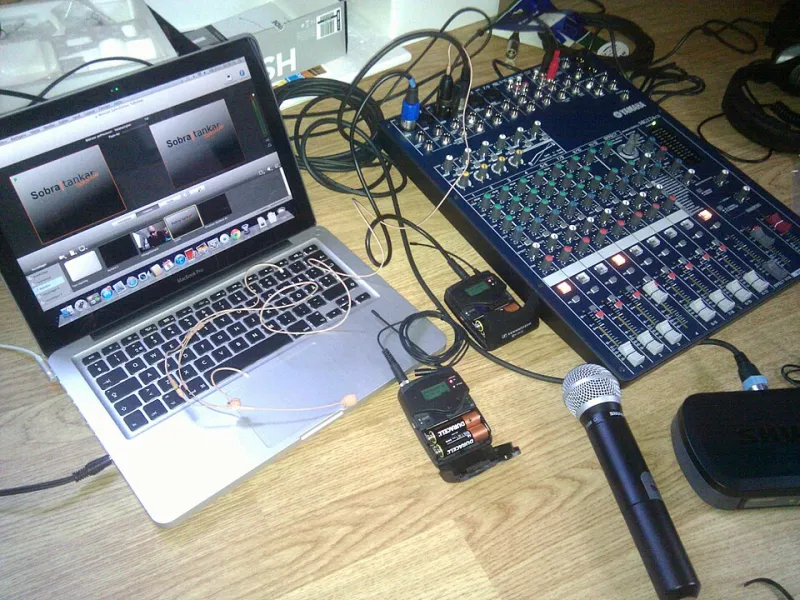
Photo: Christian Dahlqvist, CC BY-SA 2.0, via Wikimedia Commons
Here's a scenario that plays out constantly in streaming communities: someone's broadcast looks terrible, they spend $300 on a hardware upgrade, and the stream still looks terrible. Then they post about it, someone asks two diagnostic questions, and it turns out the problem was a misconfigured OBS setting that takes 30 seconds to fix.
Streaming quality issues are notoriously easy to misdiagnose because the visual symptoms — blocky artifacts, stuttering, audio that slowly drifts out of sync — don't tell you where the problem is. They just tell you something is wrong. This guide is designed to help you work backward from the symptom to the actual cause, so you can stop throwing hardware at software problems and stop blaming your ISP when your CPU is actually on fire.
Start Here: The Four Failure Zones
Every streaming quality problem lives in one of four places:
- Encoding settings — your software or hardware encoder is misconfigured
- Local hardware — your machine doesn't have enough resources to encode in real time
- Network infrastructure — your connection to the ingest server is unstable or insufficient
- Platform constraints — the streaming service itself is throttling, rejecting, or mangling your stream
The reason most people misdiagnose their problems is that they jump straight to zone 2 (hardware) without ruling out zones 1, 3, and 4 first. Hardware is expensive. Configuration is free. Always start with configuration.
Zone 1: Encoding Settings — The Most Common Culprit
If your stream looks bad and you haven't recently changed your hardware or your internet plan, start here.
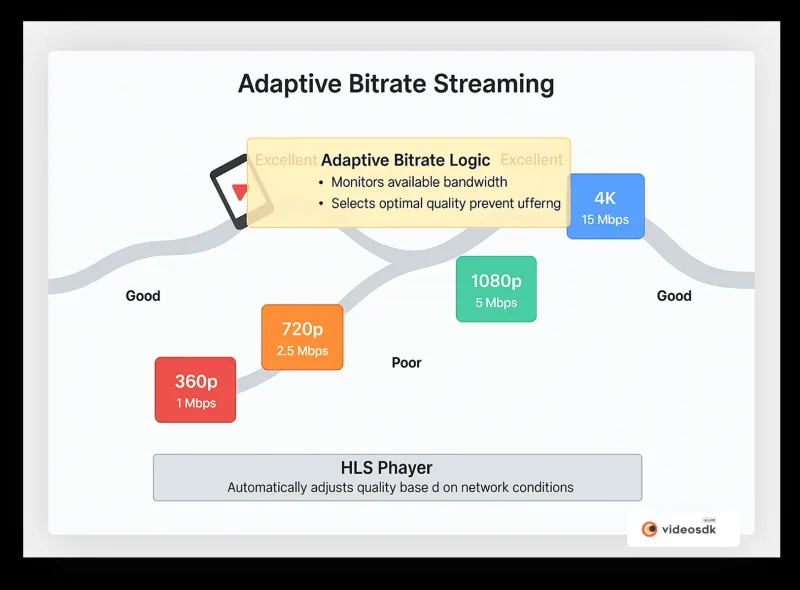
Check your output resolution and frame rate first. A surprisingly common issue is encoding at 1080p60 when your bitrate can only support 1080p30 or even 720p60. Resolution and frame rate are multiplicative in terms of encoding demand. Dropping from 60fps to 30fps at the same bitrate can dramatically improve visual quality for slower-moving content like gameplay or interviews.
Verify your bitrate against platform limits. Twitch, YouTube Live, Facebook Live, and virtually every other major platform has a maximum ingest bitrate. If you're pushing 8,000 kbps to a platform that caps at 6,000 kbps, you're going to have a bad time. Check the platform's current encoder recommendations — these change more often than you'd expect.
Look at your encoder preset. In x264 and similar software encoders, the preset setting (ultrafast through veryslow) controls the trade-off between CPU usage and compression efficiency. If you're using "ultrafast" to save CPU cycles, you're getting very poor compression — meaning you need significantly more bitrate to achieve the same visual quality as a slower preset. Try bumping up one or two preset levels and monitor your CPU usage.
Checklist:
- Output bitrate matches platform ingest limits
- Resolution/framerate combo is appropriate for your bitrate
- Encoder preset isn't set to ultrafast unless you have a specific reason
- Keyframe interval is set to 2 seconds (required by most platforms)
- Audio bitrate is at least 128 kbps (160 recommended)
Zone 2: Hardware Limitations — When Your Machine Is the Bottleneck
If your encoding settings look clean and you're still seeing problems, it's time to look at the hardware layer. But be specific about what you're looking for.
CPU encoding vs. GPU encoding. If you're using software encoding (x264, x265) and your CPU is consistently running above 80% during a stream, you're going to see dropped frames and encoding artifacts. The fix here isn't necessarily a new CPU — switching to hardware encoding via NVENC (Nvidia) or AMF (AMD) can offload encoding entirely and dramatically reduce CPU load. The quality ceiling is slightly lower than good software encoding, but it's more than adequate for most live streaming scenarios.
RAM isn't usually the problem, but it can be. If your system is swapping to disk during a stream (check Task Manager's memory usage), that will cause stuttering. 16GB is the practical minimum for modern streaming setups that also run a game or application simultaneously.
Storage I/O matters if you're recording locally. If you're streaming and recording simultaneously, a slow HDD can create a bottleneck. SSDs are cheap enough now that this shouldn't be a limiting factor for anyone building a streaming setup in 2024.
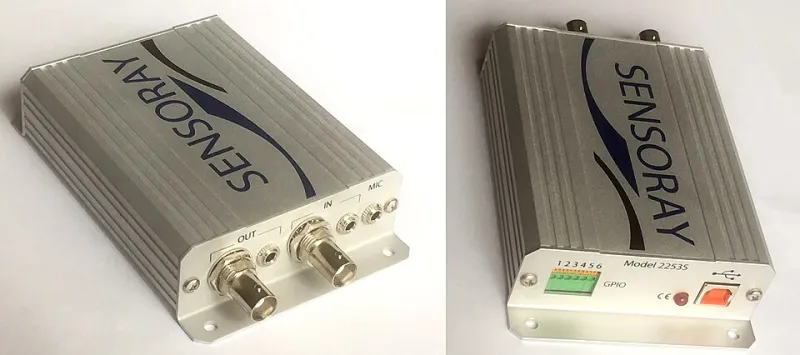
The misdiagnosis trap: People frequently buy new capture cards when their capture card isn't the problem. A capture card's job is to convert an HDMI signal to a format your PC can ingest. If your stream looks bad after capture — meaning the preview in OBS looks fine but the output is degraded — the capture card is almost certainly not your bottleneck.
Zone 3: Network Infrastructure — The Sneaky One
Network problems are frustrating because they're intermittent and often invisible until the stream is already going sideways.
Upload speed is necessary but not sufficient. You need enough upload headroom — a good rule of thumb is 1.5–2x your target stream bitrate as your available upload speed. But raw speed doesn't tell you about stability. A connection that delivers 50 Mbps on average but drops to 5 Mbps for 3 seconds every few minutes will destroy a live stream.
Run a sustained upload test, not a speed test. Standard speed tests measure peak throughput over a short window. For streaming, you want to know what your connection looks like over 10–15 minutes of continuous upload. Tools like Waveform's bufferbloat test or a sustained upload to a test server will reveal instability that a quick Speedtest.net run will hide.
Wired beats wireless, every time. If you're streaming over Wi-Fi and experiencing intermittent quality drops, try a wired connection before doing anything else. This single change fixes a remarkable percentage of "mysterious" streaming problems.
Test multiple ingest servers. Most platforms offer multiple regional ingest endpoints. If you're in the Midwest and automatically connecting to a West Coast server, you might be adding unnecessary latency and jitter. OBS has a built-in bandwidth test that can help identify the best ingest server for your location.
Zone 4: Platform Constraints — It's Not Always You
Sometimes the platform is the problem, and this is the zone that's hardest to diagnose because you have the least visibility into it.
Check the platform's status page first. During high-traffic events (major game releases, sporting events, holidays), ingest infrastructure at major platforms genuinely gets stressed. If your stream looks bad and the platform's status page shows degraded performance, wait it out.
Transcoding lag is a real thing. On platforms that transcode your stream for multi-quality delivery, there's processing happening between your ingest and your viewers. Occasionally that pipeline has issues that have nothing to do with what you're sending.
Verify your stream key and ingest URL are current. Stream keys get rotated, ingest URLs change, and platforms update their encoder recommendations. If you set up your streaming software six months ago and haven't touched it since, spend five minutes verifying everything is current.
The Diagnostic Order That Saves Money
When your stream quality goes bad, run through the zones in order: settings first, hardware second, network third, platform fourth. Most problems live in zones 1 and 3, and both are free to fix. Zone 2 upgrades are sometimes genuinely necessary — but they should be the last thing you try, not the first.