Your Encoder Is Running Hot — And Your Stream Is Paying the Price
You've triple-checked your bitrate settings. Your network upload is solid. Your source footage looks clean. And yet, somewhere around the 45-minute mark of your live broadcast, viewers start complaining about blocky artifacts and stuttering motion — the classic signs of an encoder struggling to keep up. You restart the stream, everything looks fine again, and you chalk it up to a fluke.
It wasn't a fluke. Your CPU was throttling itself into survival mode, and your encode quality went right down with it.
Thermal throttling is the silent performance killer that most live broadcasters never think to monitor. It doesn't throw an error. It doesn't crash your encoder. It just quietly reduces your processor's clock speed to avoid overheating — and suddenly the hardware you thought was handling your 1080p60 encode at x264 medium preset is now barely keeping up with ultrafast. The output degrades, the viewers notice, and you're left scratching your head at a settings panel that looks completely normal.
What Thermal Throttling Actually Is (And Why Encoders Hate It)
Every modern CPU has a built-in thermal protection system. When the processor temperature climbs above a manufacturer-defined threshold — typically somewhere between 90°C and 105°C depending on the chip — it automatically reduces its operating frequency to generate less heat. This is called thermal throttling, and it's genuinely useful for preventing hardware damage.
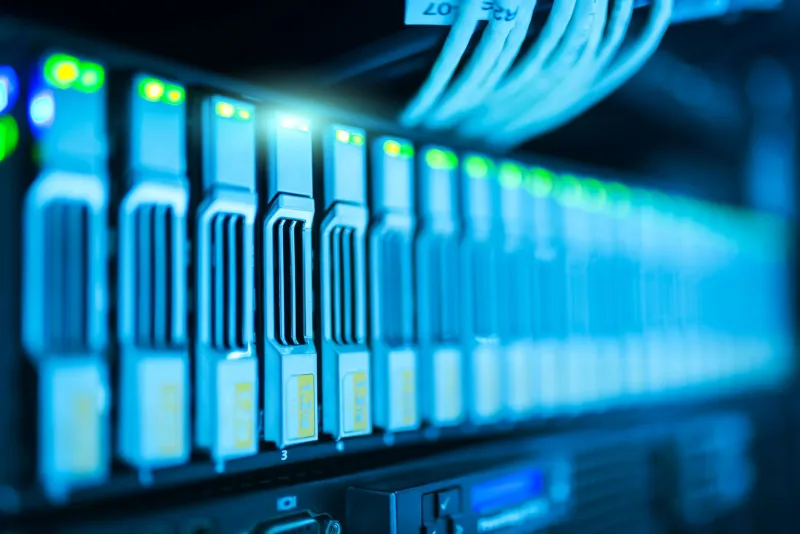
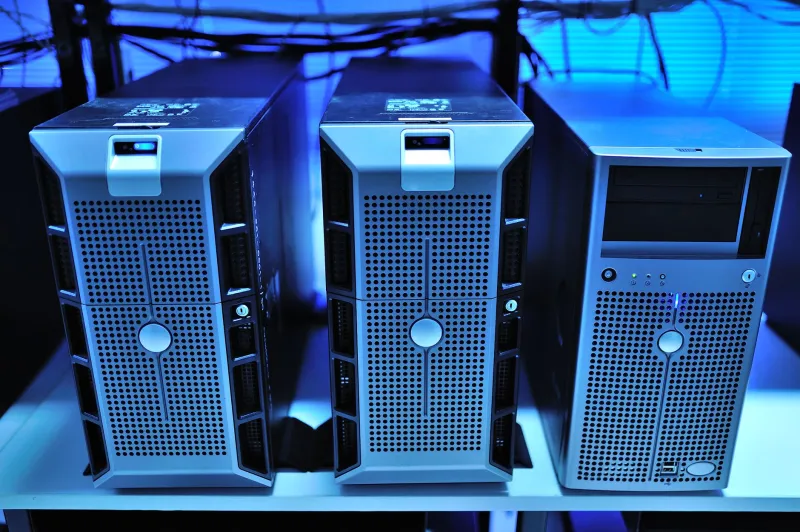
The problem is that encoding is one of the most CPU-intensive sustained workloads you can throw at a processor. Unlike a game, which has frame-to-frame variation in computational demand, a live encode running at a fixed output resolution and frame rate demands consistent, unrelenting CPU performance for the entire duration of your broadcast. That's the kind of sustained load that will push even a well-cooled system toward its thermal limits, especially in a hot room, a poorly ventilated rack, or inside a compact streaming PC that was never really designed for hours of full-load operation.
When throttling kicks in, your encoder software doesn't know why it suddenly has less compute headroom. It just knows it has fewer CPU cycles to work with. The result is degraded encoding decisions — more macroblocking, worse motion compensation, and a general drop in the visual quality of your output stream that has nothing to do with your bitrate allocation.
Real-World Scenarios Where This Bites Broadcasters
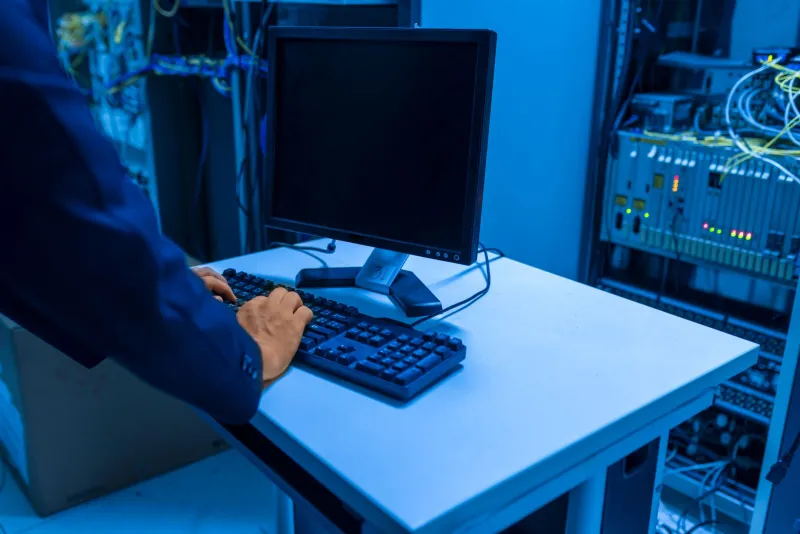
Think about a live sports production running a four-hour game broadcast on a dedicated encoding workstation in a venue's back-of-house tech room. Those rooms are notoriously warm, airflow is often an afterthought, and the encoder is running flat out the entire time. By the second half, CPU temps have been sitting at 95°C for two hours and the processor has been quietly throttling for at least 90 minutes of that. Nobody watching the temperature dashboard — because nobody thought to set one up.
Or consider the solo creator doing a marathon gaming stream from a mid-tower PC. The gaming GPU is already dumping heat into the case, the ambient room temperature is climbing because it's July in Phoenix, and the software encoder is competing for thermal headroom with everything else. The stream looks great at the start of the session and progressively worse as the afternoon goes on.
Both scenarios share the same root cause: sustained thermal stress on encoding hardware that was never monitored during the broadcast.
How to Actually Monitor CPU Temperature During a Live Broadcast
The good news is that temperature monitoring is not complicated. Tools like HWiNFO64 (Windows) and iStatMenus (Mac) can expose real-time CPU core temperatures and clock speed data, and both can be configured to log that data over time so you can correlate temperature spikes with quality drops after the fact.
For Windows-based encoding setups, HWiNFO64 running in the background with its sensor logging enabled is genuinely invaluable. You can review the log after a broadcast and see exactly when your CPU started throttling and whether it coincided with viewer complaints. That correlation alone will save you hours of troubleshooting.
If you're running OBS, the Stats panel (View > Stats) will show you dropped frames and encoding lag, which are indirect indicators that your encoder is struggling — though they won't tell you why. Pairing OBS stats with a hardware monitoring overlay gives you the full picture.
For professional broadcast environments, hardware monitoring should be baked into your production checklist the same way bitrate monitoring is. If you're using dedicated encoding hardware like a purpose-built appliance, check whether it exposes SNMP or API-based telemetry for temperature data. Many do, and integrating that into your NOC dashboard is worth the setup time.
Practical Fixes That Actually Work
Improve your cooling situation first. Before you buy new hardware, make sure your existing setup has adequate airflow. A $30 case fan upgrade or repositioning your encoder workstation away from a heat source can make a measurable difference. Clean dust filters regularly — a clogged intake filter is one of the most common causes of gradual thermal degradation in encoding rigs that worked fine six months ago.
Repaste your CPU. If your encoding machine is more than two or three years old, the thermal paste between the CPU and its cooler may have dried out and degraded. Reapplying quality thermal compound is a 20-minute job that can drop idle temps by 5°C–10°C and sustained load temps by even more.
Reconsider your encoder preset. If you're running a software encoder like x264 at a slower preset (medium or slower) to maximize quality, you're asking your CPU for more computation per frame. Dialing back to a faster preset reduces the per-frame workload and lowers sustained CPU utilization — which directly reduces heat output. The quality tradeoff is real but it's almost certainly better than the quality hit from thermal throttling.
Shift the load to a hardware encoder. NVIDIA's NVENC, AMD's AMF, and Intel's Quick Sync offload the encoding workload from the CPU to dedicated silicon on the GPU or integrated processor. Hardware encoders generate significantly less heat than software encoding under sustained load and are purpose-designed for exactly this kind of workload. The quality gap between hardware and software encoders has narrowed considerably in recent years, and for live streaming specifically, NVENC on a modern NVIDIA GPU is a genuinely excellent option.
Set up a temperature alert. HWiNFO64 supports alert thresholds — configure it to notify you when any CPU core hits 90°C. A simple audio alert during a live broadcast gives you the heads-up to investigate before throttling becomes a viewer-facing problem.
Temperature Belongs on Your Monitoring Dashboard
Here's the mindset shift: bitrate, dropped frames, and network health are standard metrics that live broadcasters monitor. CPU temperature should be right there with them. It's not an advanced hardware nerd metric — it's a direct indicator of whether your encoding hardware is operating at the performance level you need it to.
The streams that fall apart mid-broadcast aren't always the result of network instability or misconfigured settings. Sometimes your encoder is just running too hot, doing its best to protect itself, and quietly delivering a worse product to your viewers in the process. Keep an eye on the temperature, give your hardware room to breathe, and you'll cut out one of the most frustrating and invisible failure modes in live production.